Use the following safety guidelines to help ensure your own personal safety and to help protect your computer and working environment from potential damage.
General
- Do not attempt to service the computer yourself unless you are a trained service technician. Always follow installation instructions closely.
- To help prevent electric shock, plug the computer and device power cables into properly grounded electrical outlets. These cables are equipped with 3-prong plugs to help ensure proper grounding. Do not use adapter plugs or remove the grounding prong from a cable. If you must use an extension cable, use a 3-wire cable with properly grounded plugs.
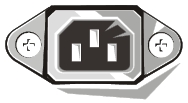
- To help avoid the potential hazard of electric shock, do not use your computer during an electrical storm.
- To help avoid the potential hazard of electric shock, do not connect or disconnect any cables or perform maintenance or reconfiguration of this product during an electrical storm.
- If your computer includes a modem, the cable used with the modem should be manufactured with a minimum wire size of 26 American wire gauge
(AWG) and an FCC-compliant RJ-11 modular plug.
- Before you clean your computer, disconnect the computer from the electrical outlet. Clean your computer with a soft cloth dampened with water. Do not use liquid or aerosol cleaners, which may contain flammable substances.
- To help avoid possible damage to the system board, wait 5 seconds after turning off the computer before disconnecting a device from the computer.
- To avoid shorting out your computer when disconnecting a network cable, first unplug the cable from the network adapter on the back of your computer, and then from the network jack. When reconnecting a network cable to your computer, first plug the cable into the network jack, and then into the network adapter.
- To help protect your computer from sudden, transient increases and decreases in electrical power, use a surge suppressor, line conditioner, or uninterruptible power supply (UPS).
- Ensure that nothing rests on your computer's cables and that the cables are not located where they can be stepped on or tripped over.
- Do not push any objects into the openings of your computer. Doing so can cause fire or electric shock by shorting out interior components.
- Keep your computer away from radiators and heat sources. Also, do not block cooling vents. Avoid placing loose papers underneath your computer; do not place your computer in a closed-in wall unit or on a bed, sofa, or rug.
|
When Using Your Computer
|
|---|
When Working Inside Your Computer
Before you open the computer cover, perform the following steps in the sequence indicated.

|
CAUTION: Do not attempt to service the computer yourself, except as explained in your online Dell™ documentation or in instructions otherwise provided to you by Dell. Always follow installation and service instructions closely. |
 |
NOTICE: To help avoid possible damage to the system board, wait 5 seconds after turning off the
computer before removing a component from the system board or disconnecting a device from the
computer.
|
- Perform an orderly computer shutdown using the operating system menu.
- Turn off your computer and any devices connected to the computer.
- Ground yourself by touching an unpainted metal surface on the chassis before touching
anything inside your computer.
While you work, periodically touch an unpainted metal surface on the computer chassis to dissipate any static electricity that might harm internal components.
- Disconnect your computer and devices, including the monitor, from their electrical
outlets. Also, disconnect any telephone or telecommunication lines from the computer.
Doing so reduces the potential for personal injury or shock.
In addition, take note of these safety guidelines when appropriate:
- When you disconnect a cable, pull on its connector or on its strain-relief loop, not on the cable itself. Some cables have a connector with locking tabs; if you are disconnecting this type of cable, press in on the locking tabs before disconnecting the cable. As you pull connectors apart, keep them evenly aligned to avoid bending any connector pins. Also, before you connect a cable, ensure that both connectors are correctly oriented and aligned.
- Handle components with care. Hold a component such as a microprocessor chip by its edges, not by its pins.
|
|
|
CAUTION: There is a danger of a new battery exploding if it is incorrectly installed. Replace the battery only with the same or equivalent type recommended by the manufacturer. Do not dispose of the battery along with household waste. Contact your local waste disposal agency for the address of the nearest battery deposit site. |
Protecting Against Electrostatic Discharge
Static electricity can harm delicate components inside your computer. To prevent static damage, discharge static electricity from your body before you touch any of your computer's electronic components, such as the microprocessor. You can do so by touching an unpainted metal surface on the computer chassis.
As you continue to work inside the computer, periodically touch an unpainted metal surface to remove any static charge your body may have accumulated.
You can also take the following steps to prevent damage from electrostatic discharge (ESD):
- Do not remove components from their antistatic packing material until you are ready to install the component in your computer. Just before unwrapping the antistatic packaging, discharge static electricity from your body.
- When transporting an electrostatic sensitive component, first place it in an antistatic container or packaging.
- Handle all electrostatic sensitive components in a static-safe area. If possible, use antistatic floor pads and workbench pads.
|
 Battery Disposal
|
Your computer uses a lithium coin-cell battery. The lithium coin-cell battery is a long-life battery, and it is very possible that you will never need to replace it. However, should you need to replace it, see
"Replacing the Battery" in the GX270 Systems User's Guide.
Do not dispose of the battery along with household waste. Contact your local waste disposal agency for the address of the nearest battery deposit site.
|
 General