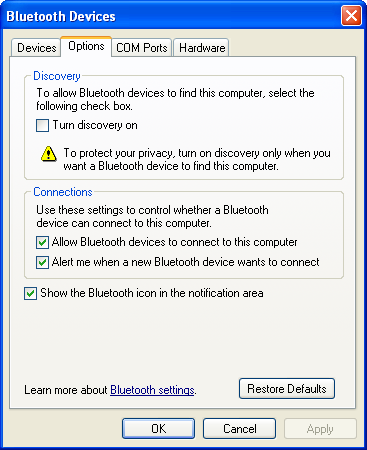
Pairing Your Phone With Your Computer 1. In your computer's system tray, double-click the Bluetooth icon ( 2. Click "Apply" if possible. 3. On your handset, go into the settings to make the handset discoverable. This will typically make your handset discoverable for the next 60 seconds. |
|
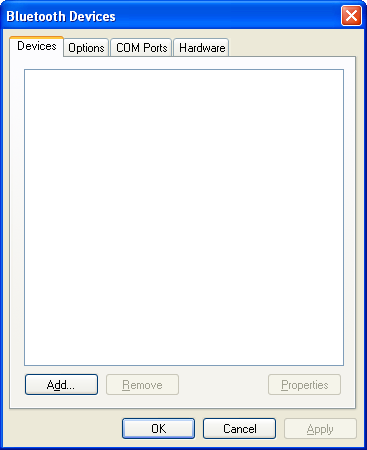
4. On your computer, select the Devices Tab. 5. Click the "Add" button. |
|
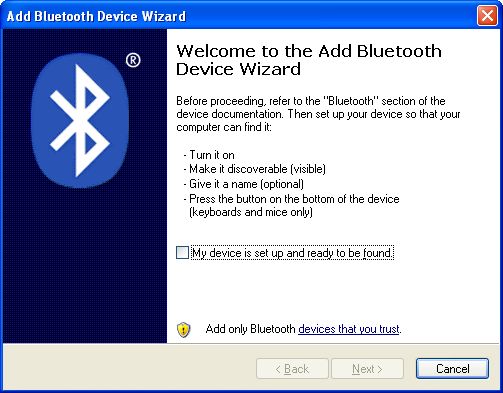
6. The "Add Bluetooth Device Wizard" appears. Check the checkbox and click "Next." |
|
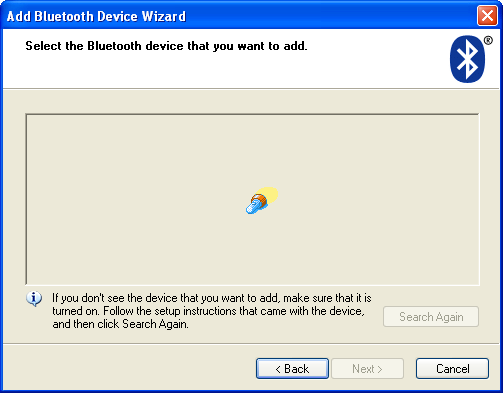
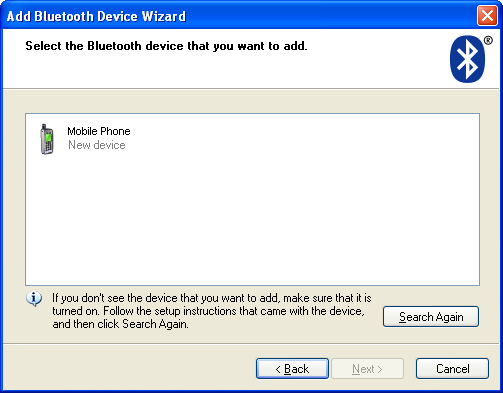
The wizard begins searching for your handset: |
|
7. Select the device (by single-clicking on it) and click "Next." |
|
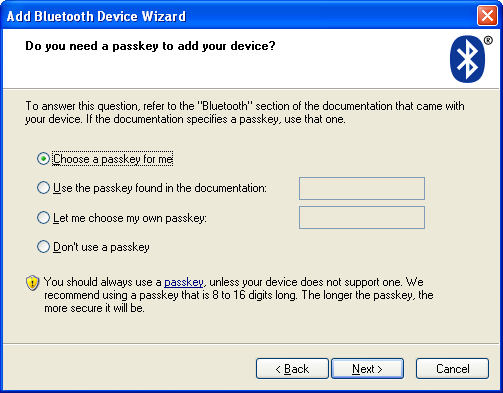
8. Select the option you prefer. |
|
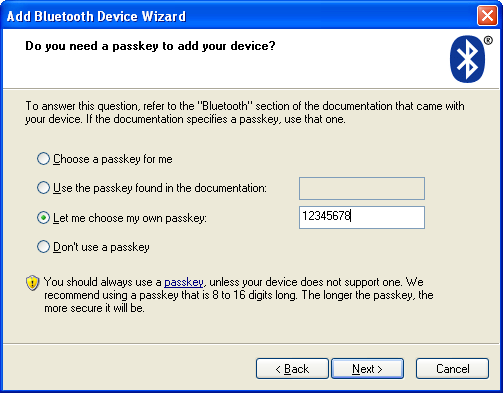
9. For example, "Let me choose my own passkey." 10. Click "Next." |
|
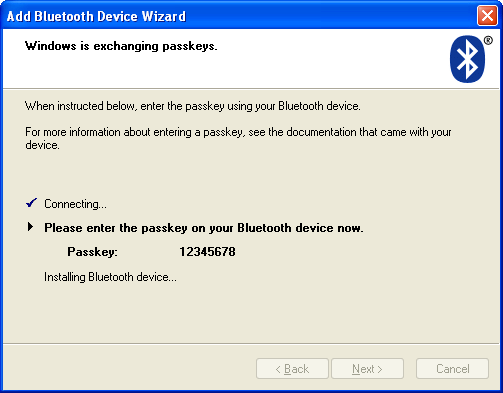
11. You will see the following screen, prompting you to bond with your handset. |
|
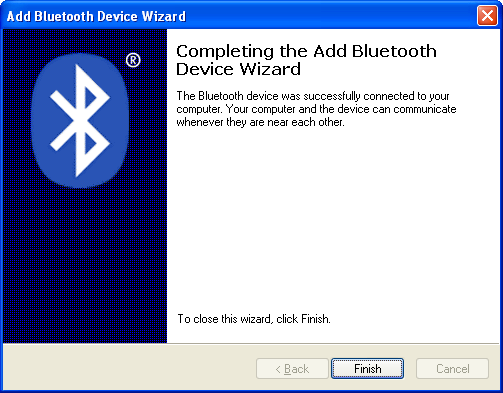
12. You will have approximately 30 seconds to perform the bonding on the phone. In many cases, you will need to select "yes," enter the passkey (12345678), and select "Ok." If successful, you will see the following screen. 13. Select "Finish." |
|
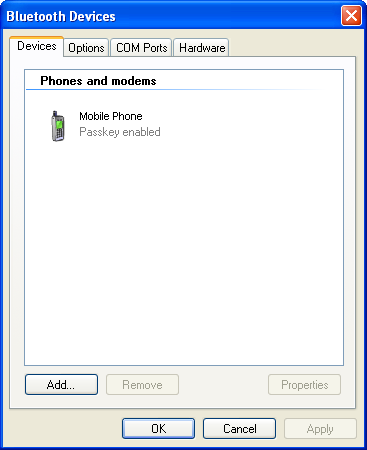
14. If you have successfully paired your computer with your phone, you will see your handset appear in the "Devices" tab. Here is one example. Click "Ok." You are now ready to launch VZAccess Manager. |
|