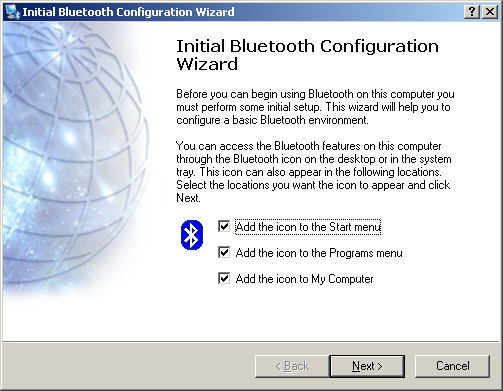
Pairing Your Phone With Your Computer 1. In your computer's system tray, double-click the Bluetooth icon ( Click "Next."
|
|
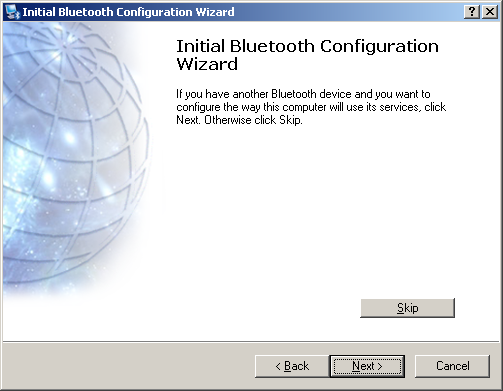
2. On this screen, click "Next." |
|
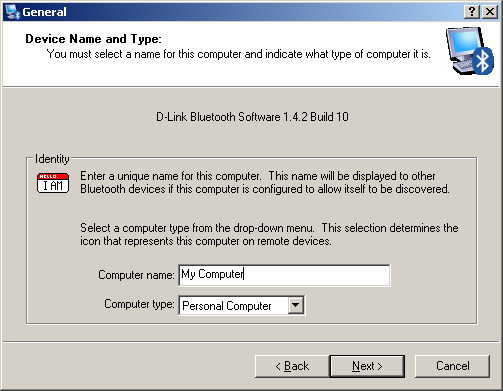
3. Edit your computer's name if you wish and click "Next." |
|
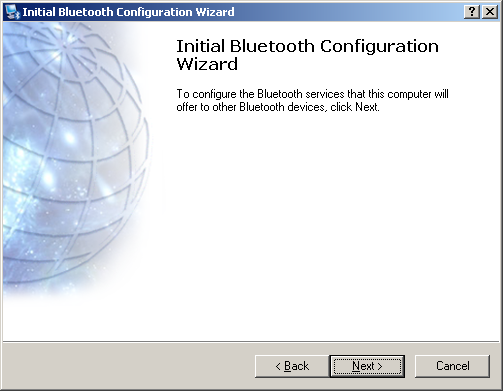
4. Click "Next." |
|
5. Click "Next." |
|
6. Click "Next." |
|
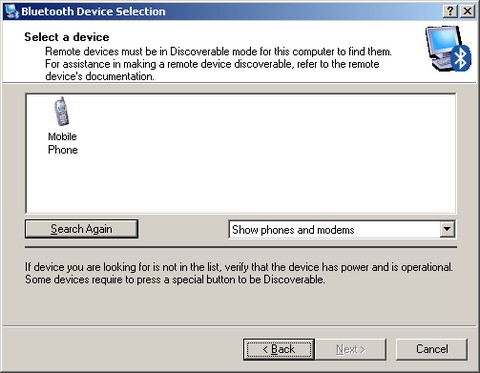
7. Select "Show phones and modems" in the drop-down menu and the "Search Again" button. Once your computer detects your handsets, your handset should prompt you to finish the bonding. You will have approximately 30 seconds to perform this bonding on the phone. In many cases, to complete this bonding, you will want to select "yes," enter the passkey, and select "Ok." If successful, you handset should eventually appear as shown here. Click "Next." |
|
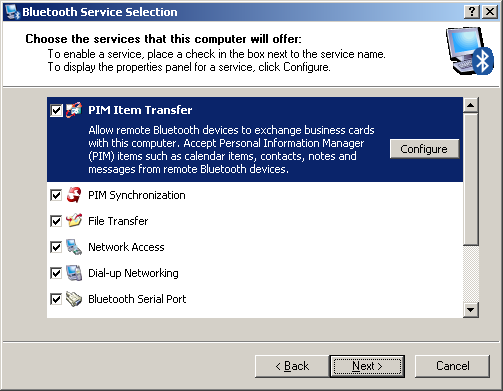
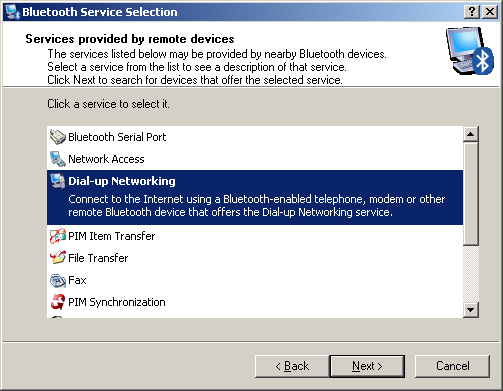
8. In the following "Bluetooth Service Selection" screen, be sure to select "Dial-up Networking." Then click "Next." |
|
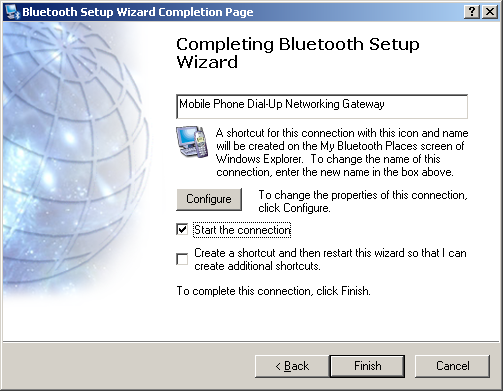
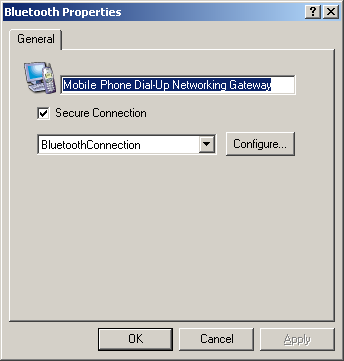
9. Customize your connection name, if desired, then click "Finish." |
|
10. Click "OK." |
|
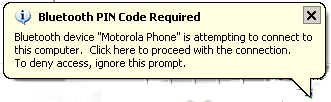
11. Above your system tray, you may see the following pop-up. Click on it to complete the pairing. |
|
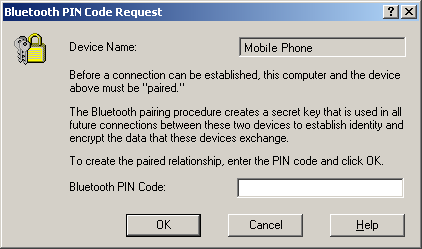
12. Enter your preferred PIN and press OK. |
|
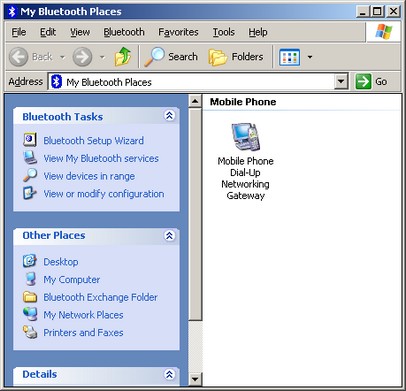
13. If successful, after double-clicking the "My Bluetooth Places" icon on your desktop, you will see your new phone listed as shown here. You are now ready to launch VZAccess Manager. |
|