After you have successfully installed VZAccess Manager, you are ready to start the program and begin your initial setup. Stepping through the Setup Wizard is critical to the proper use of your WWAN or Wi-Fi device to connect to the Internet. Do not connect/insert your wireless device until instructed to do so.
Step 1
Click the Start button, select the Programs menu and choose the VZAccess Manager menu item to start VZAccess Manager.
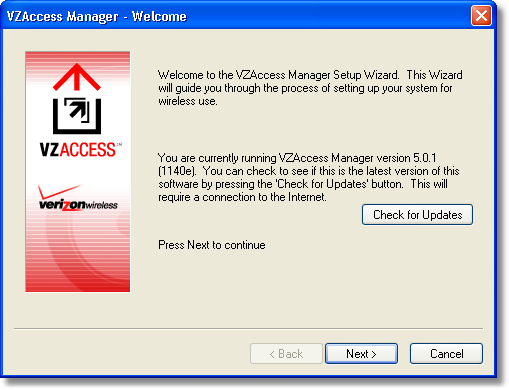
Step 2 The first time you open VZAccess Manager, the Setup Wizard will run automatically. You will be presented with a Welcome screen. If you have an Internet connection, it is recommended that you check to see if you are running the latest version of VZAccess Manager. Click the "Check for Updates" button to perform this check. Click Next to continue. |
|
Step 3 In this step of the Setup Wizard you must specify the type of wireless device that you intend to use with VZAccess Manager. Select either "Detect both Wi-Fi and WWAN" or "Detect WWAN device only." For the purposes of this guide, "Detect both Wi-Fi and WWAN" will be used. Please note that your experience in Step 4 may be different if you use a different selection. After making the appropriate selection, click Next to continue. |
|
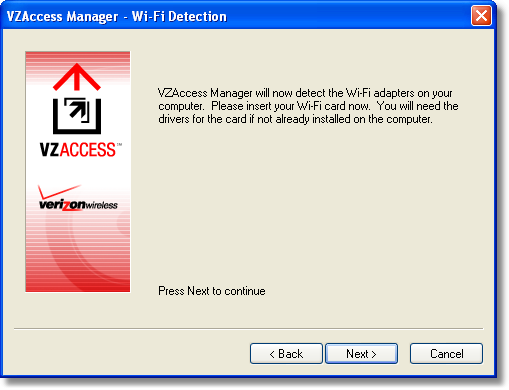
Step 4 In this step VZAccess Manager will detect the Wi-Fi adapters on your computer. If your computer has a built-in Wi-Fi adapter, you do not need to do anything and can proceed to the next step. Otherwise, please insert your Wi-Fi PC card now. You will need the drivers for the card if not already installed on the computer. Once complete, click Next to continue. |
|
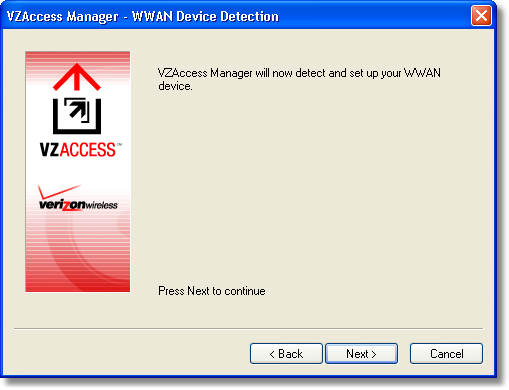
Step 5 VZAccess Manager will now detect and setup your WWAN device.
"WWAN" (Wireless Wide Area Network) denotes any UMTS, GPRS, 1xEVDO, 1xRTT or CDMA connection to the Verizon Wireless or partner networks such as VZGlobal, BroadbandAccess or NationalAccess. |
|
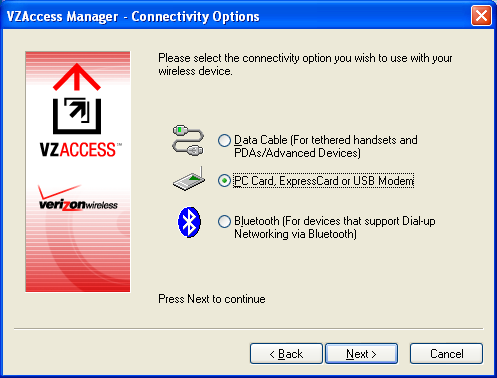
Step 6 In this step you need to select the type of connectivity you wish to use with your wireless device. For the purposes of this guide, we will select "PC Card, ExpressCard or USB Modem." Please note that this selection may not be appropriate for your type of wireless device. Once you have selected your connectivity option, click Next to continue. |
|
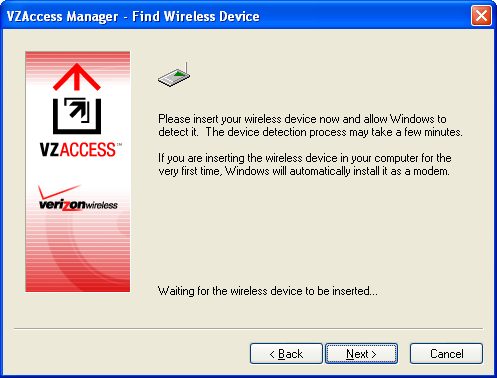
Step 7 PC card, ExpressCard or USB modem users would insert their device now, and wait for Windows to detect and install drivers for the device. Note for handset users: If you selected "Data Cable" (to connect a phone) and have not already installed the data cable drivers supplied with the cable, you must install them now. To install the data cable drivers click the Cancel button below to exit the Setup Wizard and then refer to the documentation included with the cable. Please plug the data cable into your wireless phone and then plug the cable into your computer. If your wireless phone is not turned on, do so now. |
|
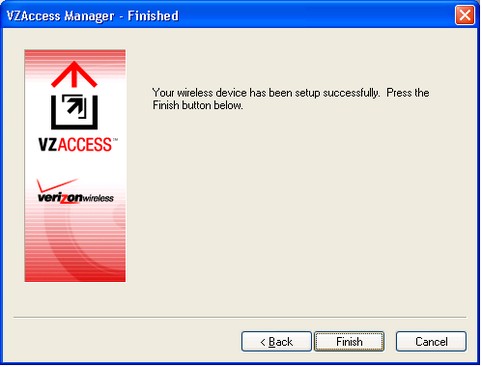
If the card is detected, you will see the following screen.
|
|
Step 8 The detection and configuration process for your wireless device is now complete. In this step you can elect to run VZAccess Manager automatically every time you start up your computer. To do so, check the "Run VZAccess Manager at Startup" checkbox. Click Finish when complete. |
|


Please familiarize yourself with the information in the "Using VZAccess Manager" and "Connecting to the Internet" sections of this guide.