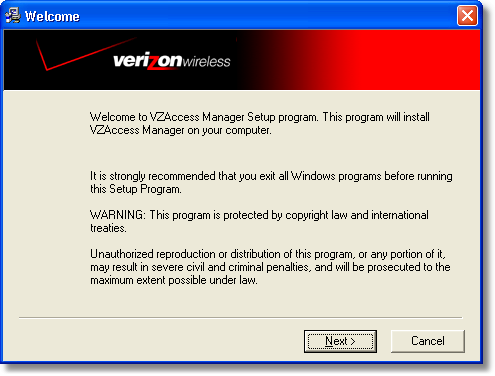
Step 1 Double-click the VZAccess Manager setup program. You will be presented with a "Welcome" screen. Click the Next button to continue with the installation process. |
|
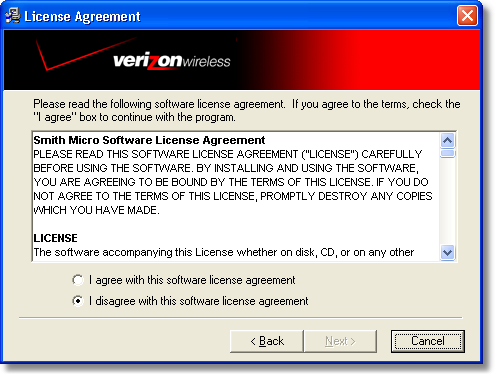
Step 2 After the Welcome screen you will see the VZAccess Manager License Agreement. In order to install and use this product you must agree with the terms of this agreement. Select "I agree with this software license agreement," then click the Next button to continue. If you do not agree with this agreement, click the Cancel button to exit. |
|
Step 3 You are now ready to select the location on your computer where VZAccess Manager should be installed. It is recommended that you do not modify the default destination folder. Click the Next button to continue. |
|
Step 4 You are now ready to begin installing VZAccess Manager components onto your computer. Click Next to continue. |
|
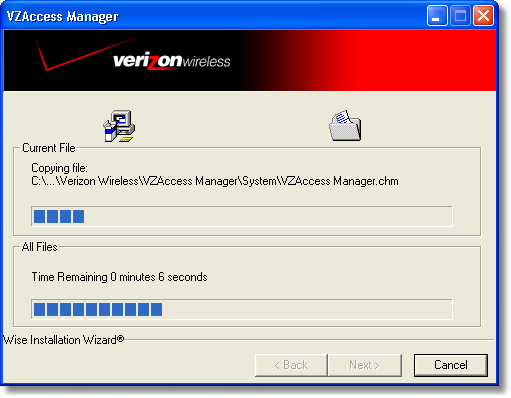
Step 5 During this step the components of VZAccess Manager are installed onto your computer. |
|
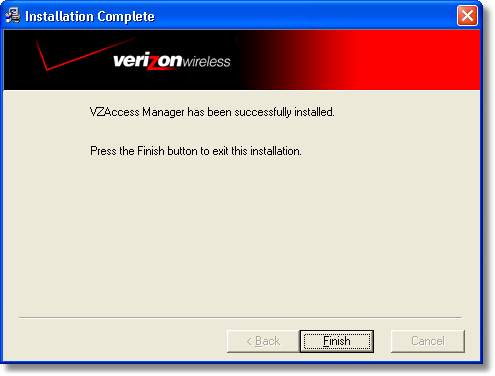
Step 6 Installation is now complete. Click the Finish button to leave the VZAccess Manager setup program and begin using your new software. |
|


The setup program will automatically create a VZAccess Manager shortcut on your desktop.