To access the Wi-Fi preferences, click on the "Tools" menu, then "Preferences...." and select the "Wi-Fi" tab.
The following options are available if you selected "detect Wi-Fi" device during setup. If you have added a Wi-Fi device after having installed VZAccess Manager, you can select "Options," "Run Wizard" to run the setup wizard again.
If you connect your Wi-Fi device after VZAccess Manager has been started and you are in coverage of a Wi-Fi network, selecting "Options," "Refresh Networks" will allow VZAccess Manager to recognize your Wi-Fi device (and WWAN if connected) and scan for available networks.
Windows Vista users will see the following Wi-Fi preferences dialog:

Windows 2000 & XP users will see the following Wi-Fi preferences dialog:

Wi-Fi Preferences in Windows Vista
Wireless adapters: In the rare case you have more than one Wi-Fi adapter, you can select the Wi-Fi adapter you are using. If your adapter does not appear, try upgrading to the latest available drivers from the Wi-Fi device manufacturer.
Automatically switch from WWAN to Wi-Fi: Requires that "Automatically connect to preferred networks" is selected. When you select this option to automatically switch from WWAN to Wi-Fi, VZAccess Manager will disconnect your WWAN connection (VZGlobal, BroadbandAccess or NationalAccess) and automatically connect via Wi-Fi when a preferred Wi-Fi network is detected.
Preferred Networks: When you connect to or add Wi-Fi networks they will appear in this list. If using the "Automatically connect" feature VZAccess Manager will try to connect to the networks in the order they appear in this list.
Manage Wireless Networks: Press this button to launch the following native Windows Vista WLAN client. You can use this Windows Vista WLAN client to manage your preferred network options.
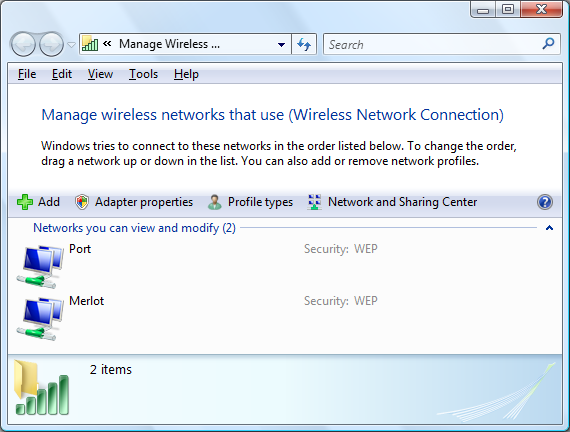
Set Options: Press this button after selecting a Wi-Fi network in the list to bring up the "Wi-Fi Connection" dialog. This dialog gives you access to additional options for each SSID beyond what is offered by the Windows Vista WLAN client pictured above.
|
Note: If you attempt to connect to a secured Access Point for which no network profile has yet been created, you will see a pop-up balloon such this appear over your system tray:
Clicking on the balloon opens a dialog allowing you to enter additional information. This includes the WEP key and/or WPA user credential. The SSID name and WEP key you enter will be automatically saved once you've successfully connected to the WLAN network. User credentials (login name, password and domain) will only be saved if your computer is part of the domain you're trying to access. (See your IT administrator for details.) If you don't click the balloon, the connection will simply be terminated. |


Wi-Fi Preferences in Windows 2000 & XP
Wireless adapters: In the rare case you have more than one Wi-Fi adapter, you can select the Wi-Fi adapter you are using. If your adapter does not appear, try upgrading to the latest available drivers from the Wi-Fi device manufacturer.
Automatically connect to preferred networks: If desired, you can select to have VZAccess Manager automatically connect to your preferred Wi-Fi networks when they are detected.
Automatically switch from WWAN to Wi-Fi: Requires that "Automatically connect to preferred networks" is selected. When you select this option to automatically switch from WWAN to Wi-Fi, VZAccess Manager will disconnect your WWAN connection (VZGlobal, BroadbandAccess or NationalAccess) and automatically connect via Wi-Fi when a preferred Wi-Fi network is detected.
Preferred Networks: When you connect to or add Wi-Fi networks they will appear in this list. If using the "Automatically connect" feature VZAccess Manager will try to connect to the networks in the order they appear in this list.
Move Up: Changes the priority of the Wi-Fi networks you have added or connected to in the past. This option is only available when you have two or more Wi-Fi networks in the Preferred list.
Move Down: Changes the priority of non Verizon Wireless Wi-Fi networks you have added or connected to in the past. This option is only available when you have two or more Wi-Fi networks in the Preferred list.
Add: Used to manually add Wi-Fi network. If you select "Add" you will have to enter the network's name and indicate if it is password protected. The only time you would need to use the "Add" feature would be if the Access Point providing the Wi-Fi coverage does not broadcast its network name (SSID). The easiest way to add a network that broadcasts its network name is to select the Wi-Fi network connection when it appears, and then select "Connect." If it is password protected you will be prompted to enter your WEP (Wired Equivalent Privacy) key.
|
Note: When VZAccess Manager finds within range a Wi-Fi network you have added manually, its signal strength is displayed to the right of the network name. If you incorrectly entered the name, the signal strength will never indicate any signal. With certain Wi-Fi adapters, the signal strength for Wi-Fi networks is not accurate until you connect to the network. |
Edit: If you select a connection in the Preferred Network list, the Edit button will become active. Pressing it will provide you with three additional tabs that will be discussed below.
Remove: This will remove any other Wi-Fi networks you have added or connected to in the past. Just select the network, then select "Remove."
Network Tab
From the Wi-Fi tab (above, "Tools," "Preferences," "Wi-Fi" tab) if you select a network listed under "Preferred Networks" then select the "Edit" button or if you select the "Add" button, one of the following options will be displayed:
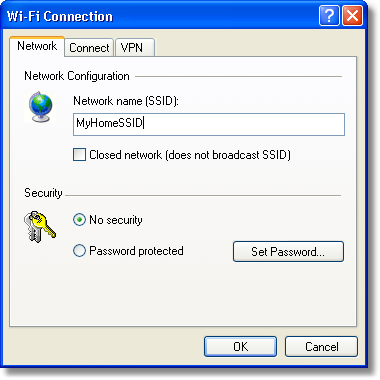
The following options exist on the Network tab:
Network Name: On the Network tab, for private networks you can edit or enter the Network name and specify if it is a closed network. Note: The name has to match the network to work. If the network broadcasts its SSID, instead of manually adding it, select the Wi-Fi network connection when it appears, and then select "Connect." If it is password protected you will be prompted to enter your WEP (Wired Equivalent Privacy) key.
|
Note: The name has to match the network to work. Note that this name is case sensitive when entering it. |
Set Password: This option allows you to modify, delete or enter your Wi-Fi WEP keys for a private Wi-Fi network.
Connect Tab
The following options exist on the Connect tab ("Tools," "Preferences," "Wi-Fi" tab, select "Add" or a network in the "Preferred Network" list and "Edit," then "Connect"):
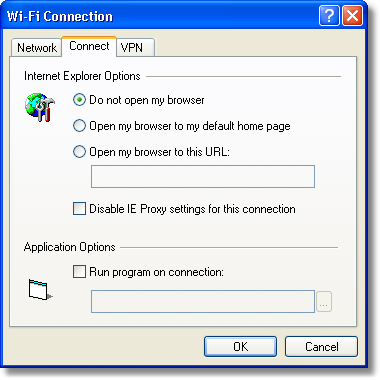
Do not open my browser: With this option selected, when you connect to a Wi-Fi network, VZAccess Manager will not automatically launch your web browser.
Open my browser to my default home page: With this option selected, when you connect to a Wi-Fi network VZAccess Manager will automatically launch your web browser and your default home page will load.
Open my browser to this URL: With this option selected, when you connect to a Wi-Fi network, VZAccess Manager will automatically launch your web browser but do it in such a way that the URL you specify will load instead of your home page.
Disable IE Proxy settings for this connection: This option provides an automatic method to turn off proxy settings when connecting to a Wi-Fi network. This would typically be used if you normally use proxy settings at work to access the Internet and you wanted to access the Internet directly via Wi-Fi without using VPN (Virtual Private Networking) software.
Run program on connection: This allows automatically running a program when you use VZAccess Manager to connect to a Wi-Fi network. Select the browse button to browse to the desired application you want to run when you connect to a Wi-Fi network using VZAccess Manager. The application will run for all Wi-Fi connections made from VZAccess Manager.
VPN Tab
The following options exist on the VPN tab ("Tools," "Preferences," "Wi-Fi" tab, select "Add" or a network in the "Preferred Network" list and "Edit," then "VPN"):

VPN Client: VZAccess Manager automatically detects if certain VPN clients like Microsoft, Cisco, CheckPoint, etc are installed on the computer and allows you to select the one you wish to use. Check with your network administrator to setup your VPN connection.
If the VPN client you wish to use does not appear in the list, you can select Other VPN Application
Other VPN Application: This allows automatically running any VPN program when you use VZAccess Manager to connect to the Wi-Fi network you added or edited. Select the browse button to browse to the desired VPN application you want to run when you connect to the Wi-Fi network you added or edited, using VZAccess Manager. If you have a shortcut you normally use to launch your VPN application you may want to right click on it and select properties to see where the program is located and how it's named.