To access the WWAN preferences, click on the "Tools" menu, then "Preferences...."
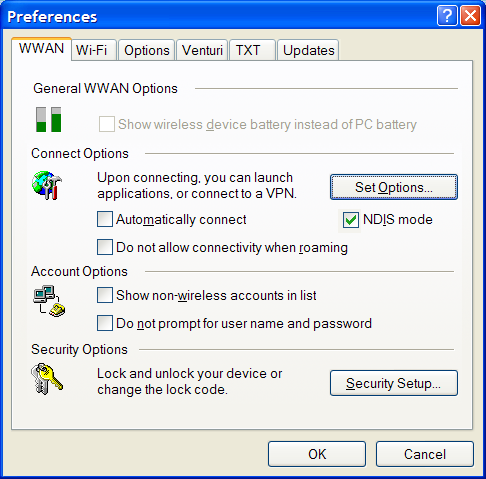
The "Set Options..." Button: This is used to set various connect options. See below.
Automatically Connect: If desired, you can select to have VZAccess Manager automatically connect at application startup.
"Do not allow connectivity when roaming:" Enabling this option will prevent you from connecting when roaming. This option is disabled if using NDIS mode. VZAccess Manager only supports this feature with certain devices; if not supported, the option will not appear.
NDIS Mode: Enables/disables the NDIS feature. Please note that NDIS is only supported by some devices. It also requires either Verizon Wireless BroadbandAccess or NationalAccess coverage, and either Windows 2000 or XP. When enabled, NDIS provides an "always on" Internet connection similar to a standard Network Interface Card (NIC). Please note that an NDIS broadband connection will remain active even if you exit VZAccess Manager.
Account Options
Show non-wireless accounts in list: If you select this option, all of your dial-up accounts will show up in VZAccess Manager's list of accounts, allowing you to use VZAccess Manager to launch them instead of Dial-Up Networking. With this option unchecked, the only connections that are displayed in VZAccess Manager's list of accounts are Verizon Wireless connections and any other connections you have created. If VZAccess Manager is also configured for Wi-Fi, these connections will also be displayed when in coverage of the hot spot.
Do not prompt for user name and password: If you are only using VZGlobal, BroadbandAccess or NationalAccess, this setting has no effect. If you created Wireless connections to dial into other networks or have existing connections you are going to launch using VZAccess Manager, checking this option will skip the screen that normally asks for your user name and password. For this to work you will have had to connect previously, successfully saving your user name and password.
Security Options
The "Security Setup..." Button: Available only with some wireless devices, this button is used to lock/unlock the wireless device as well as change its lock code.
Device Options
Show wireless device battery instead of PC battery: (This option will only appear if you are using VZAccess Manager with a handset.) If you are using a WWAN device and this option is selected, the battery level of your WWAN device will be displayed when your device is connected and detected by VZAccess Manager, as well as when you connect and disconnect using your WWAN device. Battery Status cannot be updated while you are connected to a Wireless Wide Area Network (WWAN). You can refresh the status when you are not connected, by selecting "Tools," "Refresh Signal Levels" from VZAccess Manager's main window. Some phones fail to accurately report their battery level to VZAccess Manager and some WWAN devices do not use batteries, so you can use this option to display the PC/notebook's battery instead.
The "Set Options" Button & Its Dialog
The Connect Tab
When you select the "Set Options" button from the screen above, the following options will appear ("Tools," "Preferences," "WWAN tab," "Set Options..."):
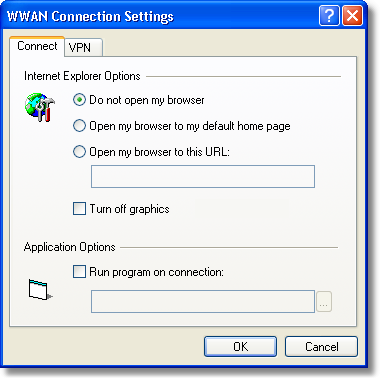
Do not open my browser: With this option selected, when you connect to a WWAN network, VZAccess Manager will not automatically launch your default web browser.
Open my browser to my default home page: With this option selected, when you connect to a WWAN network (VZGlobal, BroadbandAccess or NationalAccess), VZAccess Manager will automatically launch your default web browser and your home page will load.
Open my browser to this URL: With this option selected, when you connect to a WWAN network (VZGlobal, BroadbandAccess or NationalAccess), VZAccess Manager will automatically launch your default web browser but do it in such a way that the URL you specify will load instead of your home page.
Turn off graphics: If you select this it will turn of graphics in Internet Explorer.
With these options off, web pages will load faster but you will have to right click and select "show picture" for any pictures you want to see. With the added performance of the Venturi compression software (if installed) when using BroadbandAccess or NationalAccess, most users prefer to see graphics, so the default setting for this option is unchecked.
Run program on connection: This allows you to automatically run a program when you use VZAccess Manager to connect to a WWAN network. Select the browse button,  , to browse to the desired application you want to run when you connect to a WWAN network using VZAccess Manager. The application will run for all WWAN connections made from VZAccess Manager.
The VPN Tab
The following options exist on the VPN tab ("Tools," "Preferences," "WWAN" tab, "Set Options...," "VPN" tab):
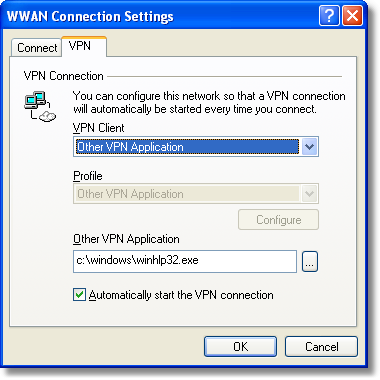
VPN Client: VZAccess Manager automatically detects if certain VPN clients like Microsoft, Cisco, CheckPoint, etc are installed on the computer and allows you to select the one you wish to use. Check with your network administrator to setup your VPN connection.
If the VPN client you wish to use does not appear in the list, you can select Other VPN Application
Other VPN Application: This allows running a VPN program when VZAccess Manager connects to a network. Enter the full path to an executable, or select the browse button, , to find the path to the desired application.
Security Setup
Available with some wireless devices, when you select the "Security Setup" button from the screen above, the following options will appear:
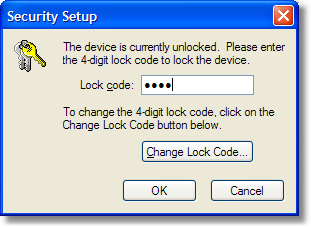
Lock code: Enter your 4 digit lock code (The default lock is the last four digits of your device's phone number) and select OK to lock or unlock the wireless device. Warning: If you plan to use this device feature, we recommend you change your lock code to a new number.
Change Lock Code: This is used to change the 4 digit lock code on the wireless device.
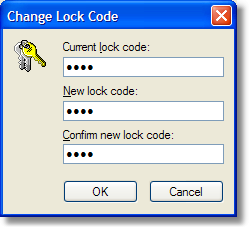
Current lock code: Enter your current 4 digit lock code.
New lock code: Enter your new 4 digit lock code.
Confirm new lock code: Re-type the new 4 digit lock code.