|
VZAccess Manager supports TXT Messaging for certain wireless devices only.
Receiving TXT Messages
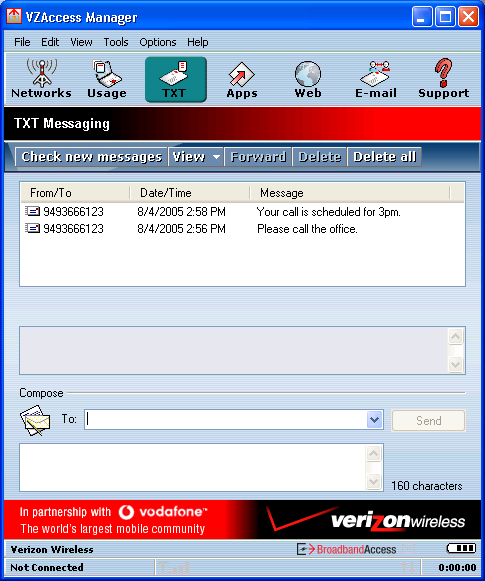
| • | All of your TXT messages will appear in the list box at the top of the TXT messaging view. By default, all sent and received messages will appear. |
| • | To view only certain messages, click on the "View" toolbar button and select "Received Messages," "Sent Messages" or "All Messages." |
| • | If you are in the TXT Messaging view and a new message arrives, the message will automatically appear in the list formatted in bold. |
| • | To view a long TXT message, select the message in the list view. The details of the message will appear below the list. |
| • | If you are not in the TXT Messaging view and a new message arrives, a TXT icon will appear in the status bar showing that new messages are available. There is also a TXT preference option that can automatically switch VZAccess to the TXT view when new messages arrive. By default, this feature is turned off. |
| • | To reply to an inbound message, select the message and press the "Reply" toolbar button. The phone number of the sender will be populated in the send area below. Enter your new message and press the "Send" button to send the message. |
| • | To forward an inbound message, select the message and press "Forward" toolbar button. The message will be populated in the send area below prefixed with a "FW:." Press the "Send" button to send the message. |
| • | To resend a sent message, select the message and press the "Resend" toolbar button. The phone number and message will be populated in the send area below. Press the "Send" button to send the message again. |
Sending TXT Messages
| • | While using the U630, to send a text message to: |
| o | a US-based wireless number, enter: +, 1, then the wireless number. |
| o | a wireless number outside the US, enter: +, 011, the country code, then the wireless number. |
| • | (Note: Users can dial either a "+" or the specific exit code prefix required to dial out of your current country.) |
| • | To send a TXT message to one or more Verizon Wireless subscribers, enter their 10-digit mobile numbers separated by semi-colons in the "To..." field. (Ex: 4529067334; 6594556321). If you use commas, the application will automatically replace them with semi-colons. |
| • | With some devices that support TXT messaging contact lists, you may be able to click on the "To..." button to open your contact list. |
| • | The Character counter counts up from 0 to 160 and counts all of the characters typed in the message field. |
| • | Click the "Send" button. |
|