This section is only applicable if you are using a WWAN device that supports dial-up connections.
You can make wireless copies of existing dial-up accounts on your system. This will wirelessly enable them and allow you to connect to them wirelessly.
To launch the copy utility, select "Tools," "Dial-up Accounts" then "Copy."
Click on the connection or connections you want to copy and click on the "OK" button.
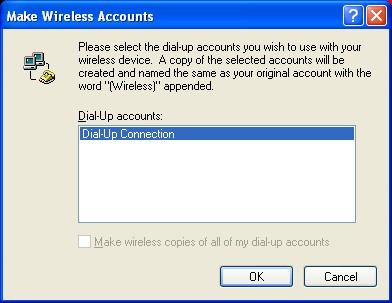
The new connection will have a suffix of "(Wireless)" and will be set to use your wireless device as the modem. If the utility is unable to automatically recognize your existing area code and number, the existing number will be displayed, and you will be prompted to enter the area code and number. The utility configures the new wireless connections to always dial 11 digits, so that they will work locally and also in other digital data coverage areas.
If it is determined that the connection might benefit by further optimization, an additional connection with a "(Wireless Optimized)" suffix, will also be created. This connection may connect faster. If you have trouble with the "(Wireless Optimized)" connection, you can delete it from your dial-up networking folder and use the "(Wireless)" connection.
Note: Some applications, such as AOL and JUNO, have dial-up networking connections that can't be used directly from VZAccess Manager or Dial-Up Networking. Copies of these connections will not work with your wireless device, since the original connections do not work by themselves. In most cases the original connections or the software can be configured to use your wireless device as a modem. For the easiest way to configure AOL to work with your wireless device, see the section on Configuring AOL.
To delete connections:
Windows 2000 and XP users can access Dial-Up Networking from VZAccess Manager by selecting "Tools," "Control Panels," "Network and Dial-up Connections," right click on the desired connection and select "Delete."