Back to Contents Page

System Board

Dell™ OptiPlex™ GX270 Service Manual

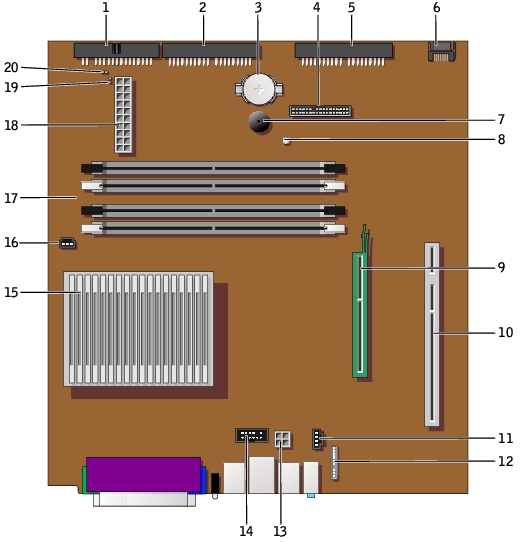
Small Form-Factor System Board


1

floppy-drive connector (DSKT)

11

CD drive audio cable connector (CD_IN)

2

CD/DVD drive connector (IDE2)

12

front-panel audio cable connector (FRONTAUDIO)

3

battery socket (BATTERY)

13

power connector (12VPOWER)

4

front-panel connector (FRONTPANEL)

14

serial port connector (SER2) for optional serial port cards

5

IDE hard-drive connector (IDE1)

15

microprocessor and heat sink connector (CPU)

6

serial ATA hard-drive connector (SATA1)

16

microprocessor fan connector (FAN)

7

internal speaker (SPEAKER)

17

memory module connectors (DIMM_1 and DIMM_2)

8

standby power light (AUX_PWR)

18

power connector (POWER)

9

AGP card connector (AGP)

19

RTC reset jumper (RTCRST)

10

PCI card connector

20

password jumper (PSWD)

Small Desktop System Board

1

floppy-drive connector (DSKT)

11

CD drive audio cable connector (CD_IN)

2

CD/DVD drive connector (IDE2)

12

front-panel audio cable connector (FRONTAUDIO)

3

battery socket (BATTERY)

13

power connector (12VPOWER)

4

front-panel connector (FRONTPANEL)

14

serial port connector (SER2) for optional serial port cards

5

IDE hard-drive connector (IDE1)

15

microprocessor and heat sink connector (CPU)

6

serial ATA hard-drive connector (SATA1)

16

microprocessor fan connector (FAN)

7

internal speaker (SPEAKER)

17

memory module connectors (DIMMs 1, 3, 2, and 4)

8

standby power light (AUX_PWR)

18

power connector (POWER)

9

AGP card connector (AGP)

19

RTC reset jumper (RTCRST)

10

PCI riser board connector (PCI2)

20

password jumper (PSWD)

Small Mini-Tower System Board

1

floppy-drive connector (DSKT)

12

CD drive audio cable connector (CD_IN)

2

CD/DVD drive connector (IDE2)

13

front-panel audio cable connector (FRONTAUDIO)

3

battery socket (BATTERY)

14

power connector (12VPOWER)

4

front-panel connector (FRONTPANEL)

15

serial port connector (SER2) for optional serial port cards

5

IDE hard-drive connector (IDE1)

16

microprocessor and heat sink connector (CPU)

6

serial ATA hard-drive connector (SATA2)

17

microprocessor fan connector (FAN)

7

serial ATA hard-drive connector (SATA1)

18

memory module connectors (DIMMs 1, 3, 2, and 4)

8

internal speaker (SPEAKER)

19

power connector (POWER)

9

standby power light (AUX_PWR)

20

RTC reset jumper (RTCRST)

10

AGP card connector (AGP)

21

password jumper (PSWD)

11

PCI connectors (PCI 1, 2, 3, and 4))


Jumper Settings

Jumper

Setting

Description

PSWD

(default)

Password features are enabled.

Password features are disabled.

RTCRST

Real-time clock reset.

  jumpered   unjumpered


Resetting CMOS Settings

CAUTION: Before you begin any of the procedures in this section, follow the steps in "Safety Instructions."
  1. Shut down the computer through the Start menu.

  2. Ensure that your computer and attached devices are turned off. If your computer and attached devices did not automatically turn off when you shut down your computer, turn them off now.

NOTICE: To disconnect a network cable, first unplug the cable from your computer and then unplug it from the network wall jack.
  1. Disconnect any telephone or telecommunication lines from the computer.

  2. Disconnect your computer and all attached devices from their electrical outlets, and then press the power button to ground the system board.

  3. Remove the computer stand, if it is attached.

CAUTION: To guard against electrical shock, always unplug your computer from the electrical outlet before opening the cover.
  1. Open the computer cover.

NOTICE: Before touching anything inside your computer, ground yourself by touching an unpainted metal surface, such as the metal at the back of the computer. While you work, periodically touch an unpainted metal surface to dissipate any static electricity that could harm internal components.
  1. Reset the current CMOS settings:

    1. Locate the password and RTC_RST jumpers on the system board.

    1. Remove the password jumper from its pins.

    2. Place the password jumper on the RTC_RST pins and wait approximately 5 seconds.

    3. Remove the jumper from the RTC_RST pins and place the jumper back on the password pins.

  2. Close the computer cover.

  3. Attach the computer stand, if used.

NOTICE: To connect a network cable, first plug the cable into the network wall jack and then plug it into the computer.
  1. Connect your computer and devices to electrical outlets, and turn them on.

Removing the System Board

CAUTION: Before you begin any of the procedures in this section, follow the steps in "Safety Instructions."
  1. Shut down the computer through the Start menu.

  2. Ensure that your computer and attached devices are turned off. If your computer and attached devices did not automatically turn off when you shut down your computer, turn them off now.

NOTICE: To disconnect a network cable, first unplug the cable from your computer and then unplug it from the network wall jack.
  1. Disconnect any telephone or telecommunication lines from the computer.

  2. Disconnect your computer and all attached devices from their electrical outlets, and then press the power button to ground the system board.

  3. Remove the computer stand, if it is attached.

CAUTION: To guard against electrical shock, always unplug your computer from the electrical outlet before opening the cover.
  1. Open the computer cover.

NOTICE: Before touching anything inside your computer, ground yourself by touching an unpainted metal surface, such as the metal at the back of the computer. While you work, periodically touch an unpainted metal surface to dissipate any static electricity that could harm internal components.
  1. Remove any components that restrict access to the system board.

  2. Disconnect all cables from the system board.

  3. Before you remove the existing system board assembly, visually compare the replacement system board to the existing system board to make sure that you have the correct part.

NOTE: Your replacement board may or may not be attached to a metal tray. If your original system board was attached to a tray, you will transfer the replacement board to the metal tray before you install the new board. See step 1 in the next procedure.
  1. Remove the system board:

    1. If your system board is attached to a metal tray, the board and the tray are connected and are removed as one piece. Pull up on the tab and slide the system board assembly toward the front of the computer, and then lift the board up and away.

    1. If your system board is secured to the computer with a screw, remove the screw and slide the system board toward the front of the computer, detaching it from the hooks on the floor of the chassis, and then lift the board up and away.


System Board/Metal Tray Assembly Removal  

System Board Removal


  1. Place the system board assembly that you just removed next to the replacement system board.

Replacing the System Board

  1. If your original system board was attached to a metal tray and your replacement system board is not attached to a tray, attach the replacement board to the metal tray:

    1. Remove the screw that secures the original board to the metal tray, and then remove the system board by sliding the board back and detaching it from the hooks on the metal tray.

    1. Set the replacement system board on the metal tray, slide it forward to attach the board to the hooks on the metal tray, and then replace the screw.

  2. Transfer components from the existing system board to the replacement system board:

    1. Remove the memory modules and install them on the replacement board.

CAUTION: The microprocessor package and heat-sink assembly can get hot. To avoid burns, ensure that the package and assembly have had sufficient time to cool before you touch them.
    1. Remove the heat-sink assembly and microprocessor from the existing system board and transfer them to the replacement system board.

  1. Configure the settings of the replacement system board.

  2. Set the jumpers on the replacement system board so they are identical to the ones on the existing board.

NOTE: Some components and connectors on the replacement system board may be in different locations than the corresponding connectors on the existing system board.
  1. Orient the replacement board by aligning the notches on the bottom to the tabs on the computer.

  2. Replace the system board:

    1. If your system board is attached to a metal tray, slide the system board assembly toward the back of the computer until the board clicks into position.

    1. If you removed a screw in step b in the previous procedure, slide the system board into position and replace the screw.

  3. Replace any components and cables that you removed from the system board.

  4. Reconnect all cables to their connectors at the back of the computer.

  5. Close the computer cover.

  6. Attach the computer stand.

NOTICE: To connect a network cable, first plug the cable into the network wall jack and then plug it into the computer.
  1. Connect your computer and devices to electrical outlets, and turn them on.


Back to Contents Page