Once your Wi-Fi or WWAN device is properly configured, connecting to the Internet is as simple as selecting the network connection type shown in the list and clicking the Connect button. Note that the Networks button immediately above the list will change to "Connect" or "Connect Wi-Fi" based on the current selection in the networks list.
Following installation of the VZAccess Manager application, launch VZAccess manager and click the Connect button. The application will automatically detect whether the device is activated. If you have not already signed-up for service on your device, when you attempt to connect to the network for the first time you will be directed to the Verizon Wireless activation site. You will be presented with options to activate a two-year contract or to sign-up for daily session service (no commitment required). Select your activation preference and follow the online screens to complete the order.
If you are outside the BroadbandAccess service area, or cannot complete the activation online, you will be presented with a phone number to call for assistance and completion of your order.
If you activate a daily session, you will be returned to the Verizon Wireless activation site the next time you attempt to access the network after your session has expired. The same activation options will be presented.
1. If you are outside the US, Canada or Puerto Rico and using the U630 PC card, select the "VZGlobal" connection. If in the US and using a card for the domestic network, select one of the following connections: "NationalAccess - BroadbandAccess" or "NationalAccess."
2. Click the "Connect" button shown below when it becomes enabled.
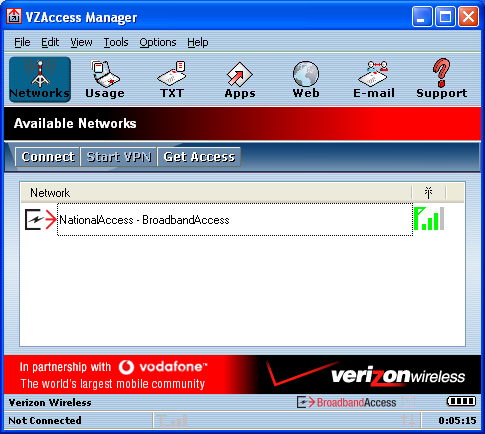
Once connected, the "Connect" button will change to "Disconnect." Simply click this to end your current connection. To connect to any other network shown, select it, and then select "Connect."
The Status Bar
Information regarding your current network connection can be seen in the status bar along the bottom of the VZAccess Manager interface. For more information on this status bar, see the section "The Status Bar" in the "Additional Features" section.
Note: If you are using a WWAN device that supports the Verizon Wireless dial-up data service and you made wireless copies of your dial-up accounts, they will also appear. See the section "Creating Wireless Copies of your Dial-Up Connections." Optionally you can have all dial-up connections appear in VZAccess Manager and use it to launch any dial-up networking connection. See the section "Setting Your Preferences."
|
The first time you connect to GlobalAccess, BroadbandAccess, NationalAccess, or a private Wi-Fi connection,a connectivity warning message will appear. You have the option to suppress these warning messages when they are displayed. |

VZAccess Manager will display status information at the bottom of the window during the connection process as well as while connected. When not connected, the status text in the lower left corner will display "Not connected" for the currently selected network. The timer will display "00:00:00." Once connected, the status text will display "Connected" and the elapsed timer will begin to run. When a connection is active, its name will appear as bold text.
The status is also reflected in the Task Tray icon.
|
Connected |
|
Idle - Not Connected |
|
Connecting |
|
Disconnecting |
|
A window will also slide out of the tray showing when you connect and disconnect from networks. |



The pop up status can be turned off, if desired, by selecting "Tools," "Preferences," "Options" tab, and un-checking "Show pop-up status windows by tray." Right clicking on the tray icon provides various options and double clicking on it will always show the application. Placing your cursor on it will display the current connection status.
Based on your preferences, your browser or e-mail or VPN program can be launched automatically, or you can launch whatever software you want to use. You can also determine if all connections show in the drop down list or only your wireless ones, see Setting Your Preferences.
Note: Always use VZAccess Manager when connecting via BroadbandAccess or NationalAccess. This will ensure that the Venturi compression software (if installed) is enabled and the wireless device is configured properly before connecting.
At any time during your connection you can check your current connection speed and throughput stats in the Statistics tab of the Session Information window. To see this window, select "Statistics" from the "Options" menu.
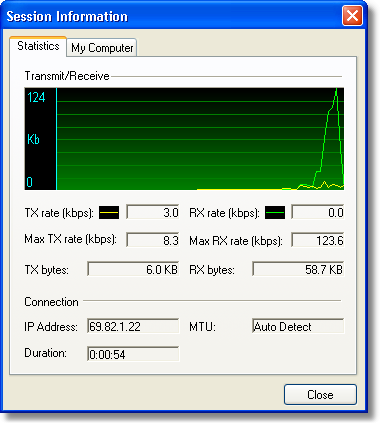
The Session Information window will also contain a My Computer tab and a Wi-Fi tab. The My Computer tab contains detailed information about your computer. This information is helpful when troubleshooting a problem.
Additional information when using the NationalAccess connection:
By default VZAccess Manager enables the Venturi compression software (if installed) for the BroadbandAccess and NationalAccess connections.
If you are using the BroadbandAccess or NationalAccess connection and the call fails when you try to connect, with VZAccess Manager returning to its idle state, you should try to connect again. If you feel you may have incorrectly entered your wireless account number during initial setup, select "Options," "Run Wizard."
Dormancy:
NationalAccess and BroadbandAccess data sessions become dormant if you are not sending or receiving any data. As soon as you resume sending or receiving data, the data session will return to an active state.
Depending on your device and your NationalAccess or BroadbandAccess plan, your data session may disconnect during a dormant state. See your Verizon Calling Plan brochure for details or visit www.verizonwireless.com. If this happens, select disconnect, and then connect again.
While dormant your wireless device may be able to receive a voice call. If you leave your wireless phone connected to your PC, after you finish your voice call you may be able to resume your data session as you normally would.