1. Launching VZAccess Manager
|
|

2. The VZAccess Manager Setup Wizard
The first time you launch VZAccess Manager, you will see the VZAccess Manager Setup Wizard:
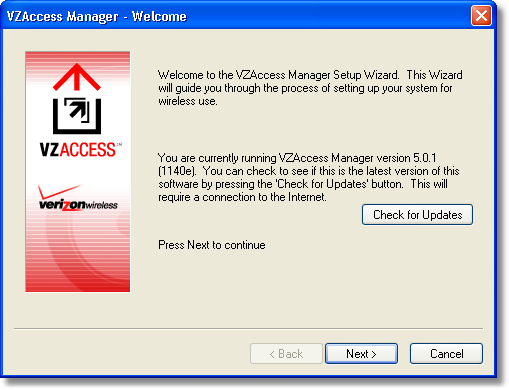
Stepping through this wizard is critical to properly setting up your WWAN or Wi-Fi device. Please follow the on-screen instructions, or, for step-by-step guidance, refer here.
3. The Networks View
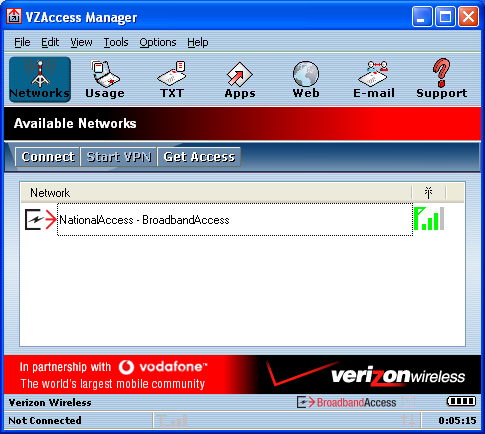
When the Setup Wizard is complete, VZAccess Manager displays the "Networks" view. This view lists all currently available network connections and indicates their respective signal strengths:
VZGlobal users may also see the following version of the main panel:
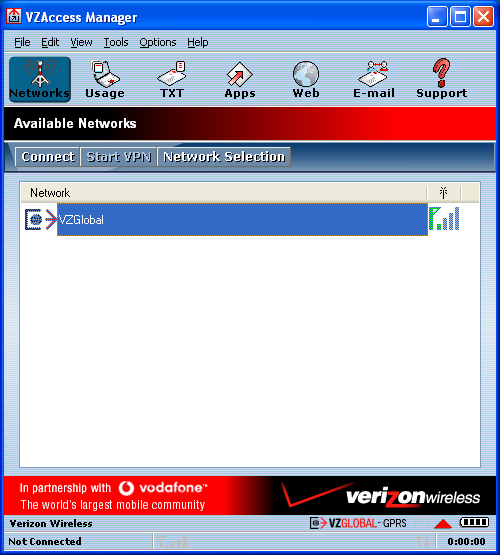
The status bar along the bottom of the window displays your current connection state and the elapsed time of any connection. Additional information is available in "The Status Bar" topic.
4. Connecting For the First Time
To connect to Verizon Wireless for the first time:
| • | Select “National Access–BroadbandAccess.” |
| • | Click the “Connect” button. |
| • | If your device has not yet been activated, you will be directed to a Verizon Wireless website to set up an account. (To later purchase additional access, click the “Get Access” button.) |
| • | Important: Once your account is set up on the Verizon Wireless website, please click the “Disconnect” button to ensure your account is set up properly. |
| • | If you wish to begin using the service, click “Connect” again (or simply double-click the network name). |
5. Disconnecting
To disconnect, either click the “Disconnect” button, or double-click the network name again.
Other Notes
|
If your expected connection does not appear: Select "Refresh Networks" from the "Options" menu. This will cause VZAccess Manager to look for your wireless device(s) and verify network availability. |

|
Changing Wireless Devices: If you change wireless devices, you will need to run the Setup Wizard again. To do this make sure that your phone and cable are connected, then select "Run Wizard" from the "Options" menu. |
|
Wi-Fi networks:
|
|
NationalAccess and BroadbandAccess Connections:
|
|
The VZGlobal Service:
|
For further troubleshooting tips, please refer to Troubleshooting.