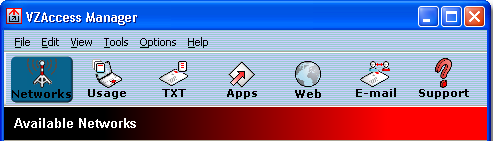
The "Networks" button
Displays all of your available wireless connections and networks. Please refer to the Connecting section earlier.
The "Usage" button
Provides a concise session log of your network activity. Click on a column heading to sort the log. This window also displays the total number of sessions as well as the total time connected.
The information displayed in the Usage log can be customized using the controls that appear just below the list.

To view only the connection history of a specific network type, check the "Selected connection" checkbox and select the desired type from the drop-down list. To view only the connections made during a specific interval, check the "Date range" checkbox and specify the date in the "From:" and "To:" fields.
To export this log as a CSV file, click the Export button that is immediately above the log. To clear the log, press the Clear button. Note that clearing the log cannot be undone.
The "Apps" button
Add applications here that you want easy access to while connected to the wireless Internet. VZAccess Manager will pre-load into this view links to Verizon Wireless web sites, and any Microsoft Office applications you have loaded on your computer.
The "TXT" button
The TXT button allows you to send short text messages to any other wireless device that supports SMS. Note that this button is only available if VZAccess Manager supports TXT messaging on your device.
The "Web" button
Launches the default web browser on your computer.
The "Email" button
Launches the default email application on your computer.
The "Support" button
Displays a variety of help options available to you. Click this button to find assistance with a problem, to explore the full range of VZW products and services, or to contact Verizon Wireless.