AOL supports using other connections to the Internet, so it can be used with the Verizon Wireless VZGlobal, BroadbandAccess or NationalAccess connections.
Note:
When using the AOL interface, Venturi (if installed) is unable to compress your Internet traffic, however, Venturi compression will occur if you launch and use your web browser.
Configuring AOL Version 9
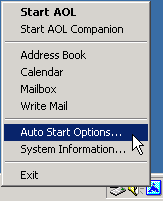
Step 1: Right click on the AOL icon in your task tray, and then click on "Auto Start Options..."
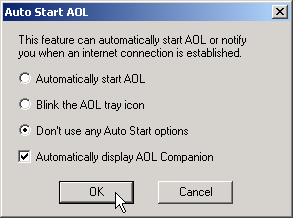
Step 2: Select "Don't use any Auto Start options," and then click the "OK" button. (We have found it to be more reliable to manually launch AOL, rather than to use the Auto Start options.)
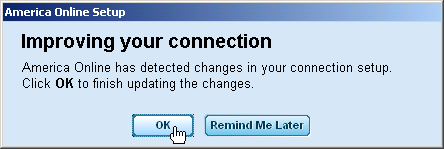
Step 3: The first time you run AOL (version 9), after setting your wireless device, you may get the following screen; select "OK" to proceed.
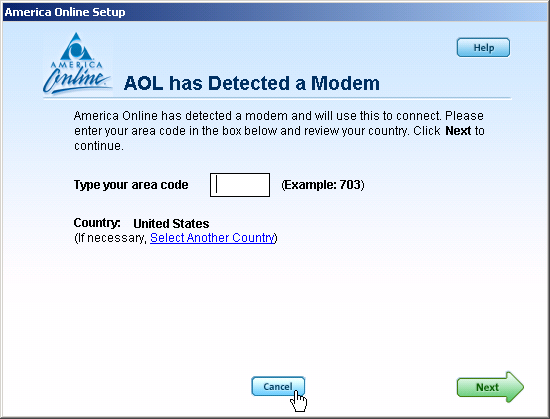
Step 4: AOL will attempt to detect how it might be able to connect.

Step 5: Once AOL detects a way to connect, select "Cancel"
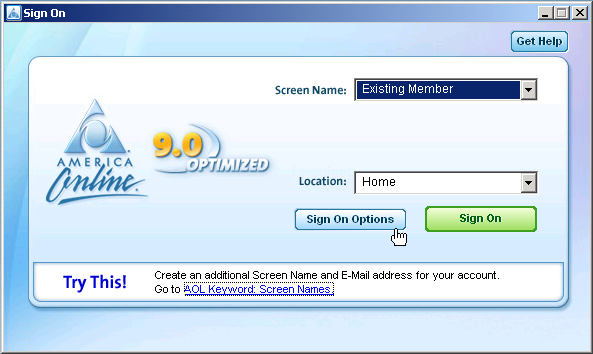
Step 6: From the sign on screen select "Sign On Options"
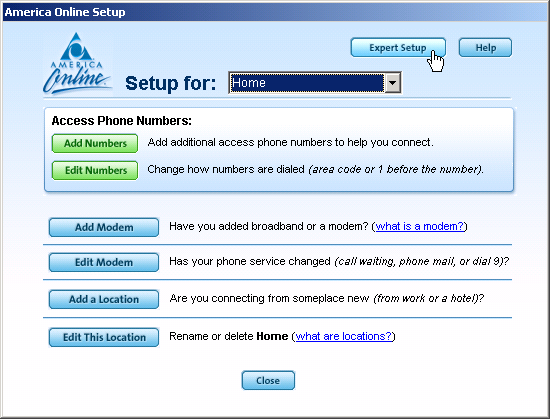
Step 6: Select "Expert Setup"
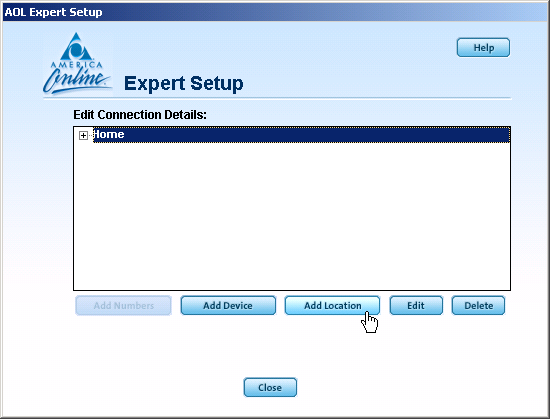
Step 7: Select "Add Location"
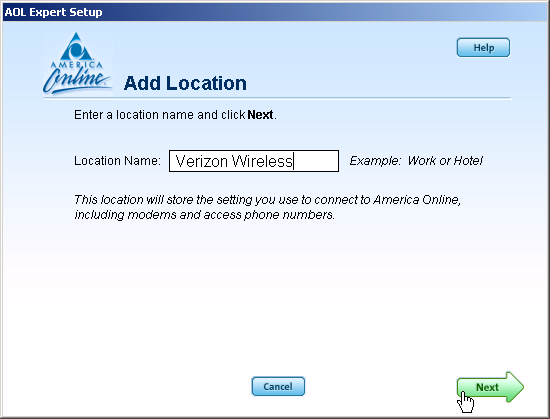
Step 7: For the location name enter "Verizon Wireless" and then select "Next."
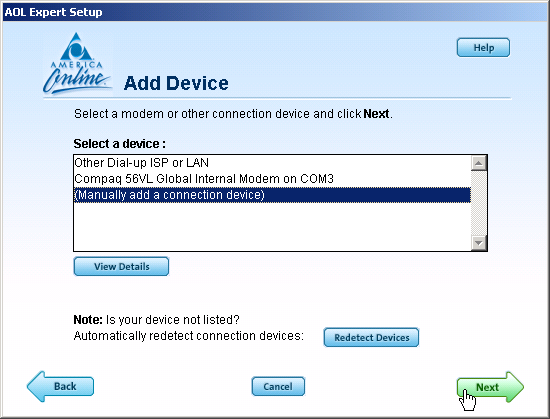
Step 8: If "Other Dial-up ISP or LAN" is available select it then select "Next" and go to Step 10. If this option is not available, select "(Manually add a connection device)" and then select "Next."
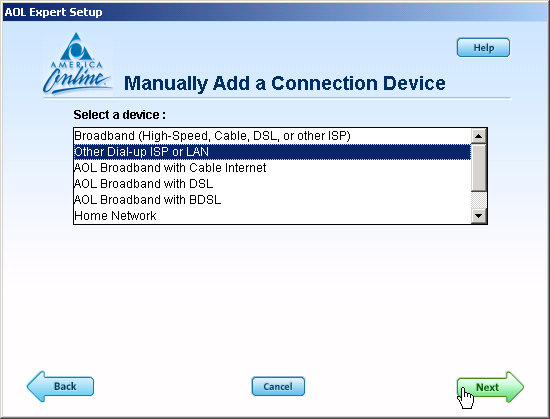
Step 9: Select "Other Dial-up ISP or LAN" then select "Next."
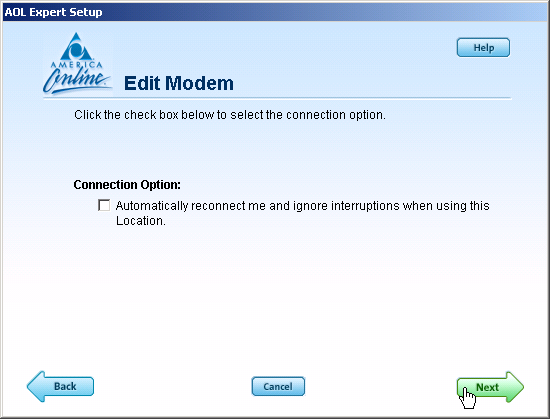
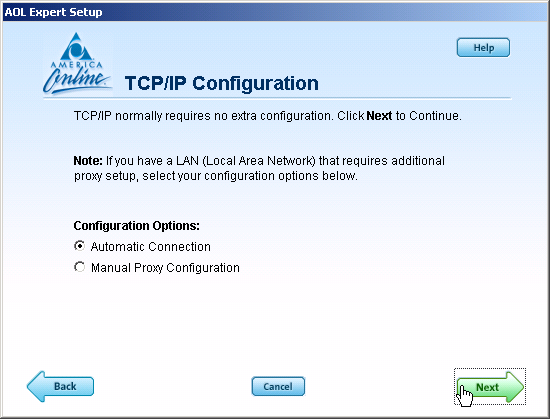
Step 11: Select "Next"
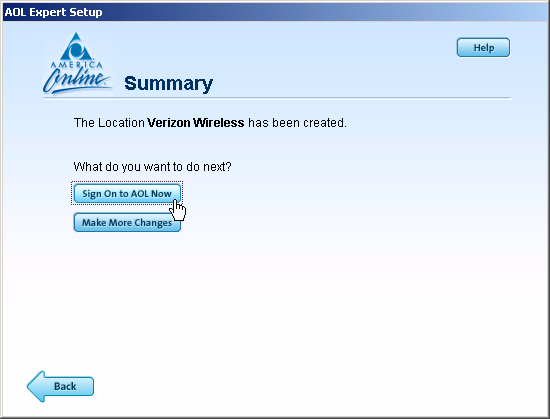
Step 12: Even though AOL reports the location has been created, you must click on "Sign On to AOL Now" to save the changes. Since you are not actually connected to the Internet, AOL will not actually be able to sign on, but it will save your changes.
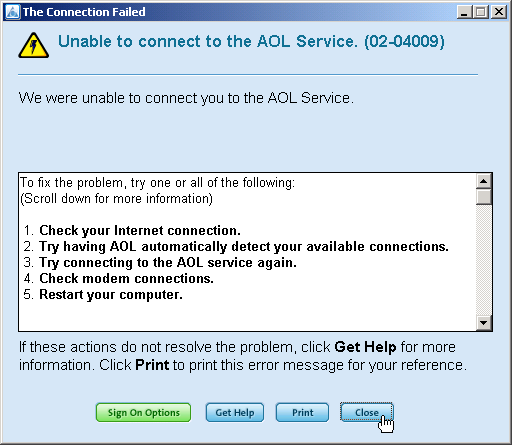
Step 13: Select "Close" when you get the following error message. This completes configuring AOL to work with any connection to the Internet, including BroadbandAccess and NationalAccess.
Using AOL Version 9 with your Mobile Office Connections
To use AOL with the Verizon Wireless VZGlobal, BroadbandAccess or NationalAccess, select the desired connection from VZAccess Manager's main window and select "Connect."
Once connected, launch AOL. From your sign on screen, select "Verizon Wireless" for the location and sign on.
(Note: You can set VZAccess Manager to automatically launch AOL when you get connected. For further help details, see the "Run program on connection" section on the Wi-Fi Specific Settings page and the WWAN Specific Settings page. Check the box to "Run program on connection:," then click the  button to browse and select aol.exe, it should be located in your "C" drive in an America On Line folder, under the "Program Files" folder).
Note: If you normally use a landline modem rather than connecting wirelessly, just remember to change the location back to the one you normally use. Then change it back to "Verizon Wireless" when you use VZGlobal, BroadbandAccess or NationalAccess.
Reminder: To disconnect from VZGlobal, BroadbandAccess or NationalAccess, click on the "Disconnect" button in VZAccess Manager. (Signing off AOL will not end the call.)